
Introduction
At some point, most designers realise that the work itself isn’t the only challenge.
It’s everything around it.
Briefs sitting in one place, references in another, feedback buried in emails, and a growing number of tabs you’re slightly afraid to close in case something important disappears.
For a while, I tried to manage this with a mix of notes, folders, and whatever system made sense at the time. It worked, but only just.
More recently, I’ve found myself using Notion to organise design projects more clearly, as a central workspace that helps bring everything together.
In this article, I’ll walk through how designers use Notion to organise projects, and where it actually fits into a real creative workflow.
Quick Answer: Is Notion Good for Designers?
Notion is a useful tool for designers because it acts as a central workspace to organise projects, notes, references, and tasks in one place.
Rather than replacing design tools, Notion sits around them, helping structure workflows and keep everything connected. I like to think of it as a kind of “second brain”, something that frees up a bit of space so you don’t have to hold everything in your head.
What Problem Notion Solves for Designers
Before using Notion, my workflow felt slightly fragmented.
Files lived in folders. Feedback sat in emails. Notes were spread across different apps. Tasks mostly existed in my head until they didn’t.
It wasn’t completely broken, just slightly disjointed.
This is the main problem Notion solves. Not storage, but structure.
Instead of constantly asking, “Where is everything?”, you start asking, “How does this project fit together?”
And that shift makes a bigger difference than you’d expect.
If you’re thinking more broadly about this, I’ve also explored how designers organise their projects and how these systems fit together in practice.
How Designers Use Notion to Organise Projects
The easiest way to understand Notion for designers is not as a single tool, but as a flexible workspace that supports different parts of the design process.
1. Keeping Project Briefs Clear and Accessible
Almost every project starts with a brief, although it rarely arrives as something clean and structured.
More often it’s a mix of emails, messages, meeting notes, and half-formed ideas that slowly come together over time.
In Notion, this becomes a single page where everything can live together.
A simple brief page might include:
- project goals
- deliverables
- timeline
- client notes
- early ideas
Having this in one place removes a lot of confusion later, especially when feedback starts coming in and the project begins to shift slightly.
I usually keep briefs for personal work in a Google Doc, saved online and shared with the client. It gives me a single place to gather everything, and I’ll link that directly into my Notion workspace so I can refer back to it quickly when needed.
Over time, I’ve found it’s much easier to create your own brief structure upfront, rather than relying on whatever information happens to come through. A simple form you can send to clients makes a big difference, as it ensures you’re getting the level of detail you actually need to do the work properly.
Having that structure in place makes everything feel more organised from the start, and it feeds naturally into the rest of your workflow.
I’ve definitely had projects where information arrives in small pieces over time, which can quickly become confusing. It usually ends with me sending a slightly stressed email on a Friday evening trying to confirm something in the brief… and not hearing back until it’s already impacting the work.
2. Collecting References Without Losing Direction
Notion is also useful for keeping references close to the project itself.
This might include screenshots, links, visual inspiration, and notes on direction. Instead of having inspiration spread across different tabs, everything sits alongside the brief, which makes the whole process feel more connected.
And realistically, it’s also where those slightly chaotic phone notes end up, the ones that made perfect sense on the commute but are slightly harder to decode later.
One thing I’ve noticed is that the way references are organised matters more than how many you collect.
Too many and everything feels unclear. A smaller, more curated set tends to make decisions easier.
I usually take a lot of my inspiration from sites like It’s Nice That, Creative Boom, and Pinterest. Pinterest in particular can be slightly overlooked, often pigeonholed into fashion or DIY, but I actually think it’s one of the most useful search tools for visual inspiration.
Over time, the algorithm starts to learn what you’re drawn to, which makes it surprisingly good for discovering new directions you might not have actively searched for. It feels less like browsing and more like slowly uncovering patterns in your own taste.
3. Breaking Projects Into Manageable Steps
Once the direction is clearer, the next step is turning it into something you can actually start.
Large design projects can feel overwhelming when viewed as one big task. In Notion, this usually becomes a simple task list or board that breaks things down into smaller, more manageable steps.
For example:

Tasks move through these stages as the project develops. I don’t always use this in a strict way, sometimes it’s just a list, but that flexibility is part of what makes it work.
Personally, I tend to prefer using boards, but when things get busy, a simple list usually does the job. Either way, there’s something very satisfying about ticking something off, even if it’s just moving it to “done”.
I’ve noticed that when things get hectic, I have to be quite intentional about resetting my system. I’ll usually take a bit of time at the end of the day to organise everything I’ve been jotting down, updating where tasks are sitting and making sure nothing gets lost.
If I leave that until the end of the week, it very quickly turns into a bit of a mess.
4. Creating a Central Project Space
This is where Notion becomes most useful.
Instead of having everything spread across different tools, each project becomes a single space where everything is connected.
A typical Notion project might include:
Project Context
- brief
- notes
- goals
Creative Work
- links to Figma files
- references
Tasks
- checklists or boards
Feedback
- comments and revisions
Notion doesn’t replace your design tools. It simply connects them, and in practice, that’s usually the part that makes the biggest difference.
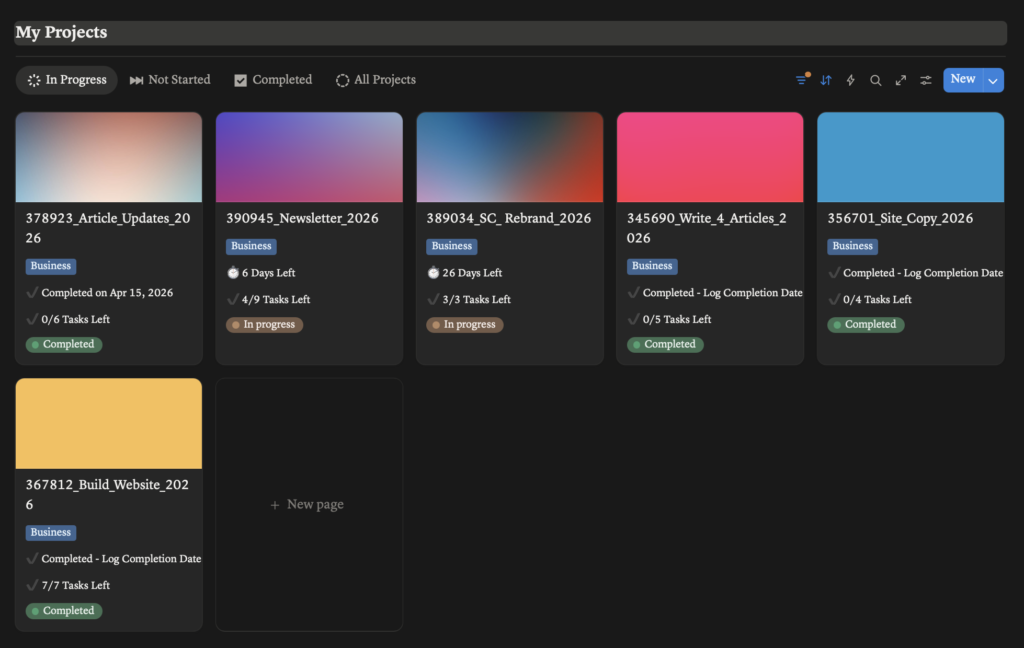
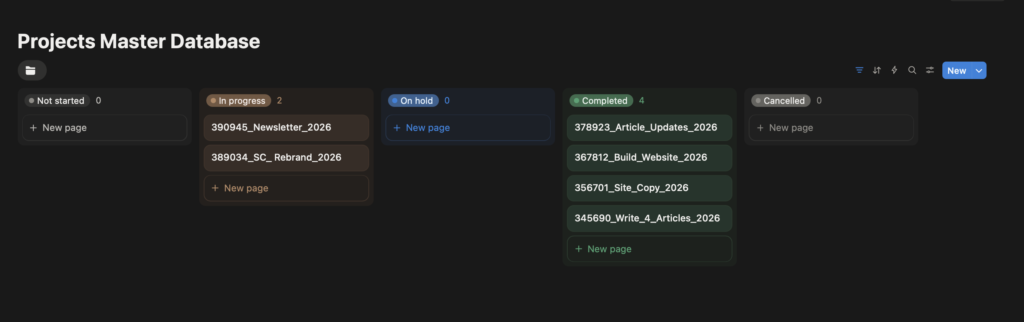
My current Notion setup looks something like this, combining both project boards and a master database that keeps everything organised at a higher level.
5. Supporting Ongoing Creative Work
Notion isn’t just useful for individual projects.
It can also support content planning, idea tracking, resource libraries, and personal workflows. Over time, it becomes less of a tool, and more of a workspace you return to.
This idea of connecting tools is something I’ve touched on in tools designers use to stay organised, where different systems support different parts of the process.
Where Notion Doesn’t Replace Other Tools
It’s worth saying this clearly.
Notion doesn’t replace design tools like Figma, file storage like Google Drive, or more structured project management platforms.
Instead, it sits around them.
It works best as a layer that connects everything, not where everything lives.
Why Notion Works Well for Designers
From what I’ve found, Notion works well because it is flexible, visual, easy to adapt, and simple to return to.
It doesn’t force you into a rigid system, which is important for creative work where things don’t always follow a predictable path.
How to Start Using Notion as a Designer
If you’re starting from scratch, it’s very easy to overcomplicate Notion.
A simpler approach is usually better.
Start with one project page. Add your brief, collect references, and create a simple task list.
That’s enough to begin with.
You don’t need a complex system straight away.
Final Thoughts
Notion isn’t a perfect tool, and it won’t organise your work for you automatically.
But it does make it much easier to create a structure that supports your projects, rather than working against them.
For me, it’s become a space where everything comes together. Not in a rigid or overly structured way, but in a way that feels clear enough to return to, even when things get busy.
And that’s probably the most important part.
It’s not about building the perfect system. It’s about having something you can rely on, something that reduces just enough friction to let you focus on the work itself.
Over time, those small improvements add up, and the whole process starts to feel a little more considered, and a lot more manageable.
Leave a Reply